Usage Cheat Sheet – Advisor
Chat Starts
Availability to handle new chat
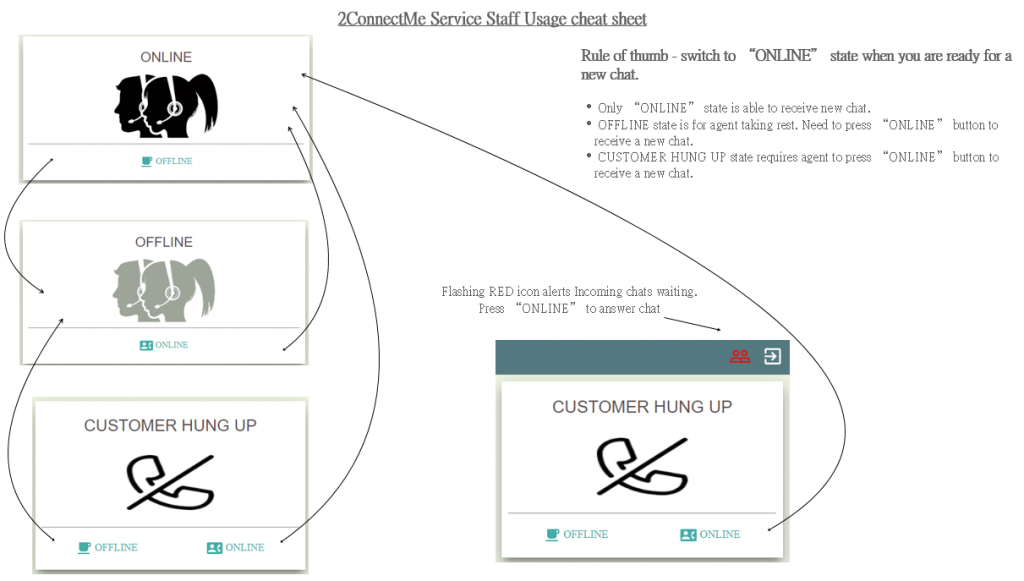
It is important to understand the following 3 service advisor status of the app. It allows advisor to control if he is ready to handle new incoming chats.
- ONLINE – advisor ready for handlng new chat.
- OFFLINE – advisor is NOT ready. NO new chat will be assigned.
- CUSTOMER HUNG UP – client hung up. Advisor is free to choose “OFFLINE” or “ONLINE”.
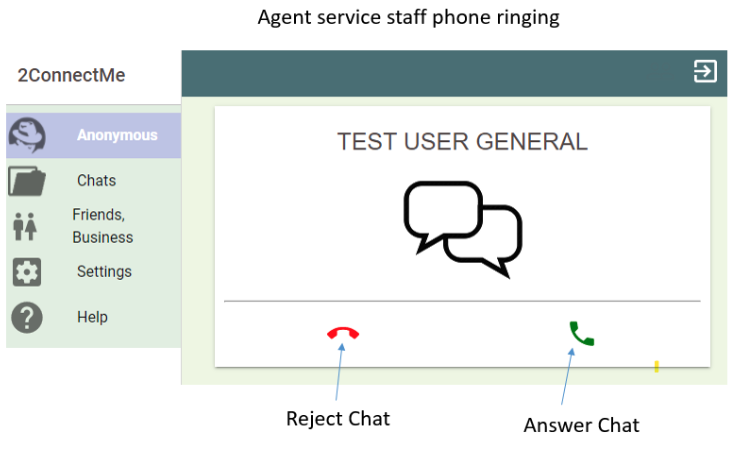
New Incoming chat
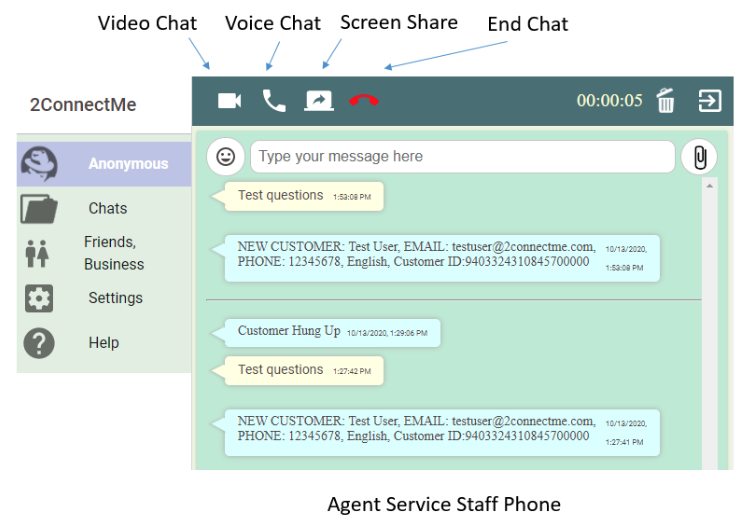
Video Voice Screen Share buttons
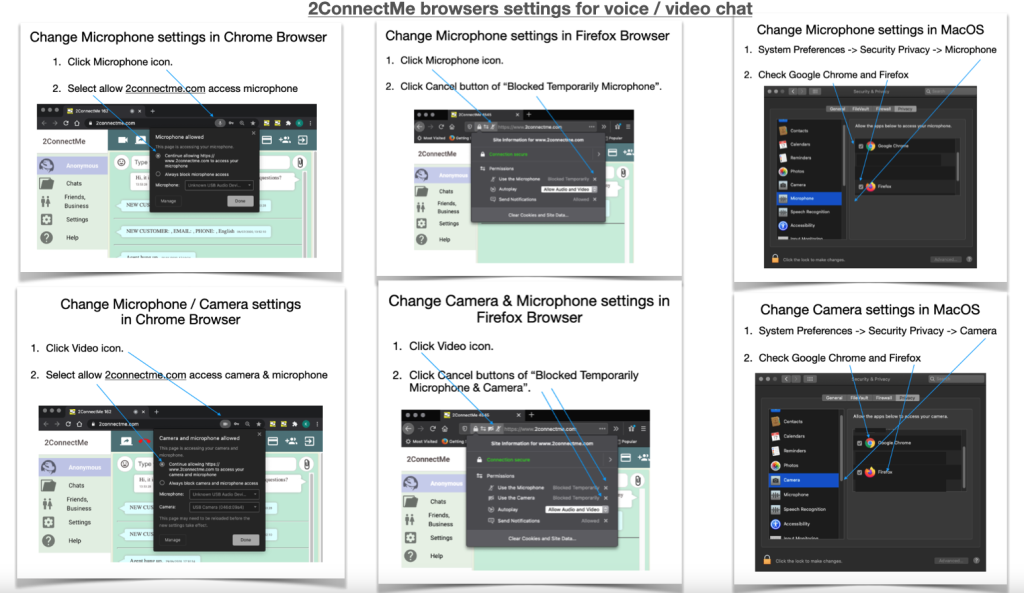
App Permission for microphone and camera
On browser, it will prompt the user to permit accessing camera and microphone for video chat. Just click ALLOW / YES to continue video voice chat.
Manual Payment Request
Charging Scheme
This is ad hoc invoice billing to client during live chat. Service staff advisor can issue an invoice to client either at the beginning or at the end of chat. It is highly recommended service fees should be paid by client before any consultation chat starts.
Charging Controls
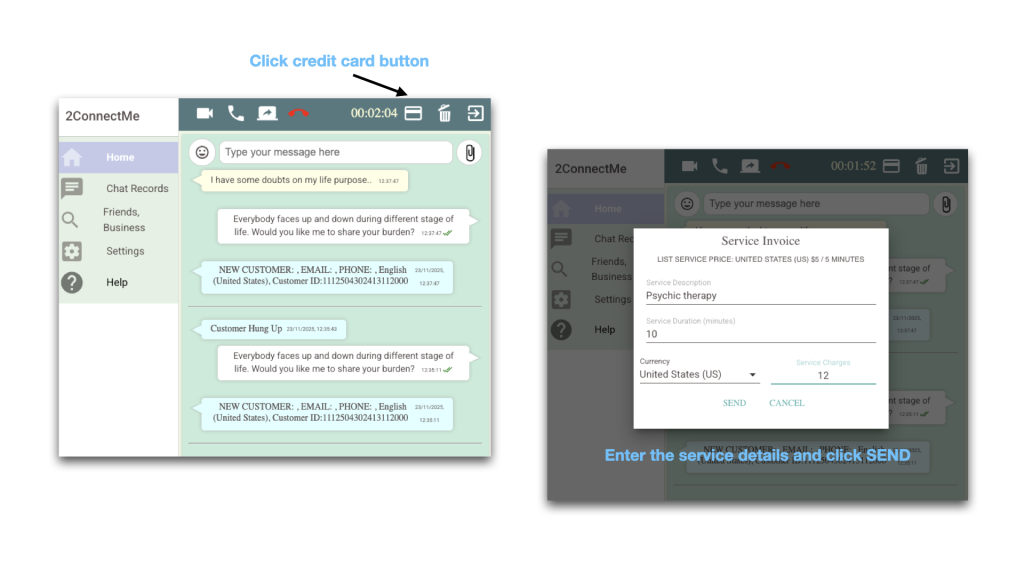
After successfully chat connection with customer, service staff advisor phone is with a “Credit Card” button. Such “Credit Card” button will triiger an invoice pop up to let service agent to input the details as follows.
Advisor prepares the service invoice
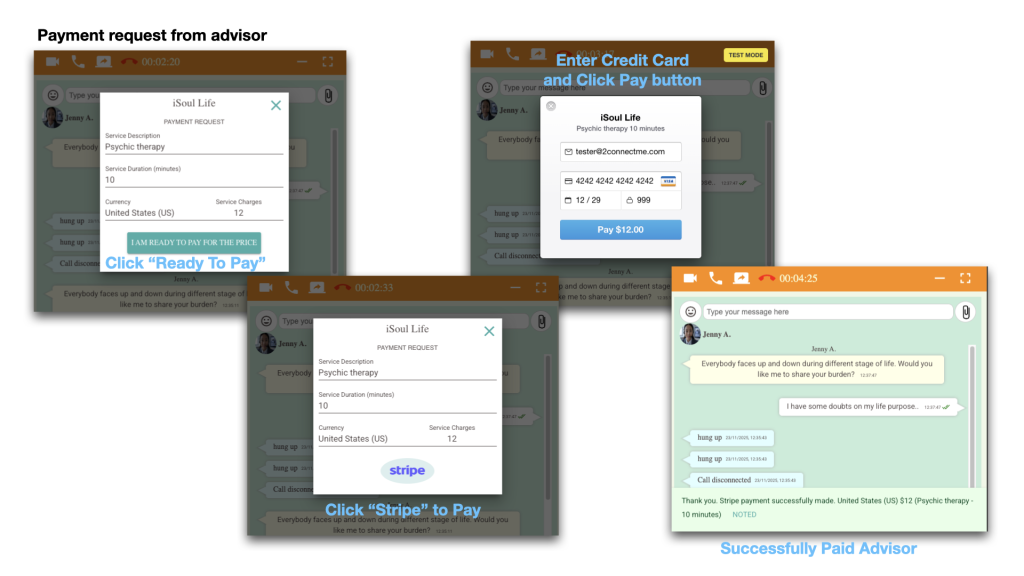
Client Invoice Payment
Client customer will be prompted to ask the credit card payment for such invoice. After service fees succesfully paid, the timer will be reset to the duration of session purchased and starts to count down.
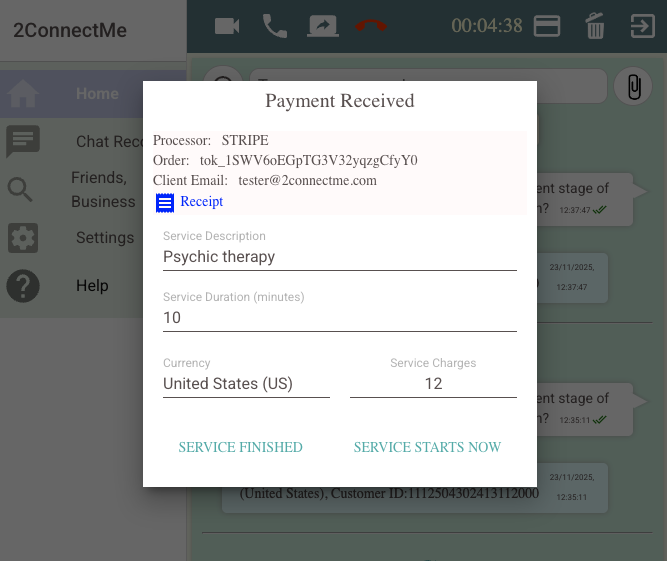
Service staff received service fees
Service staff agent will be prompted of service fees received. Service staff may either press
- Service Finished button which stops the current timer and prompt chat finished.
- Service Starts button which triggers timer starts to count down from the duration having been paid by the client.
Client session finished and start a new session if needed
When the session time is running out, the timer will be reset to the original session duration purchased. Client may ask to buy a new session to continue the conversation immediately.
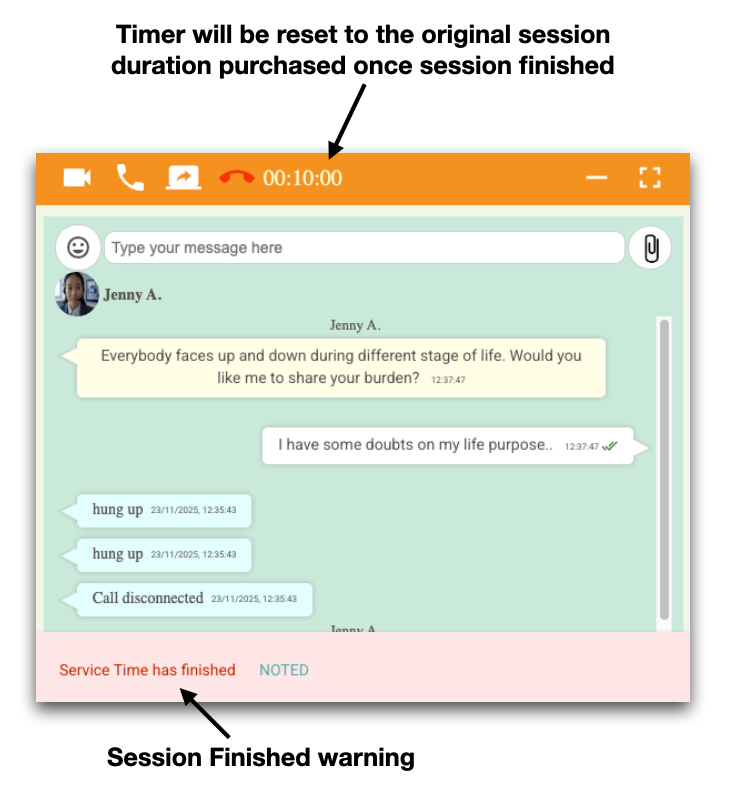
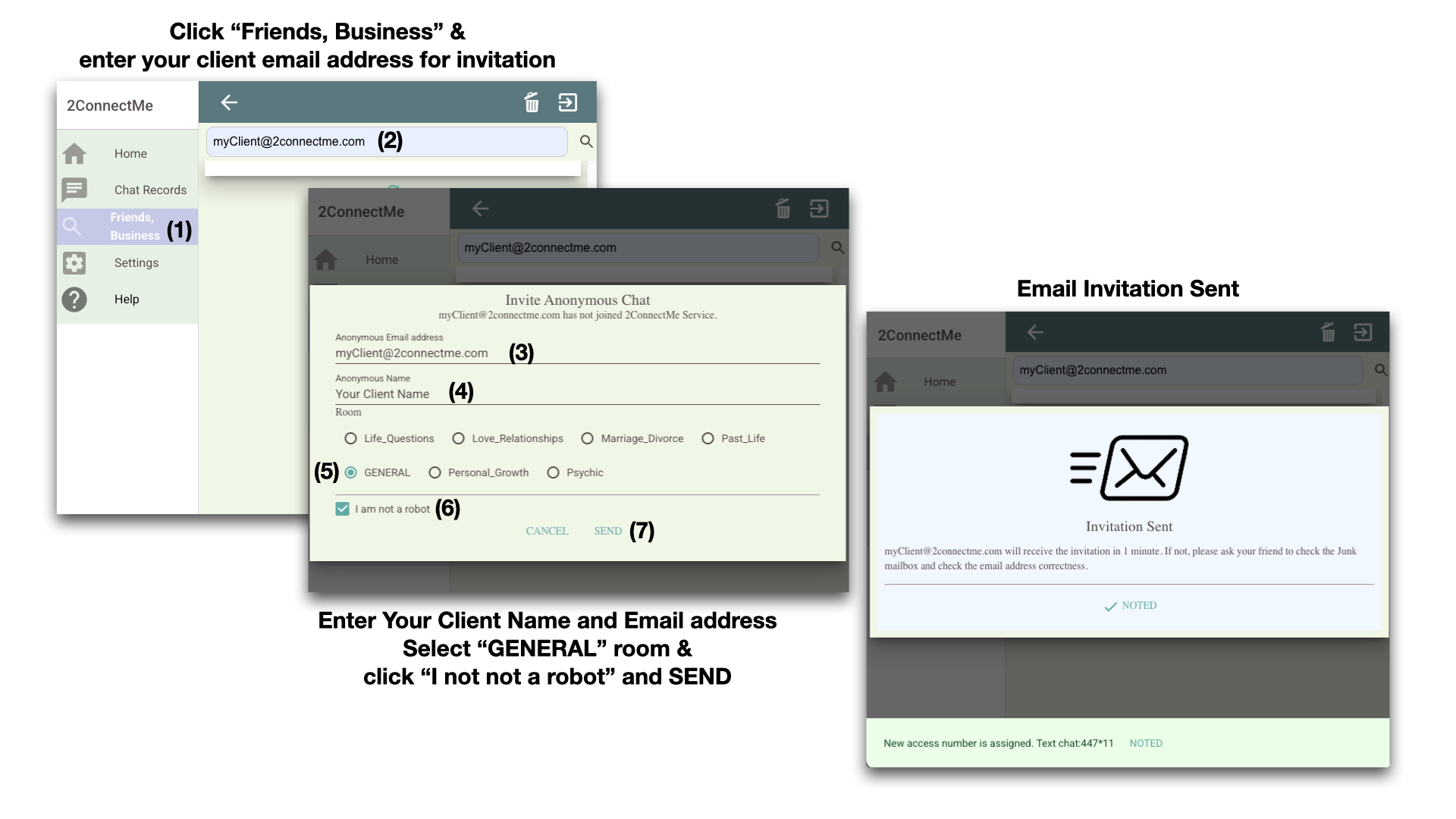
Invitation email to Client
Besides the incoming chats from iSoul.Life, advisor can also initiate chat with client proactively through invitation email at Friends / Business menu.
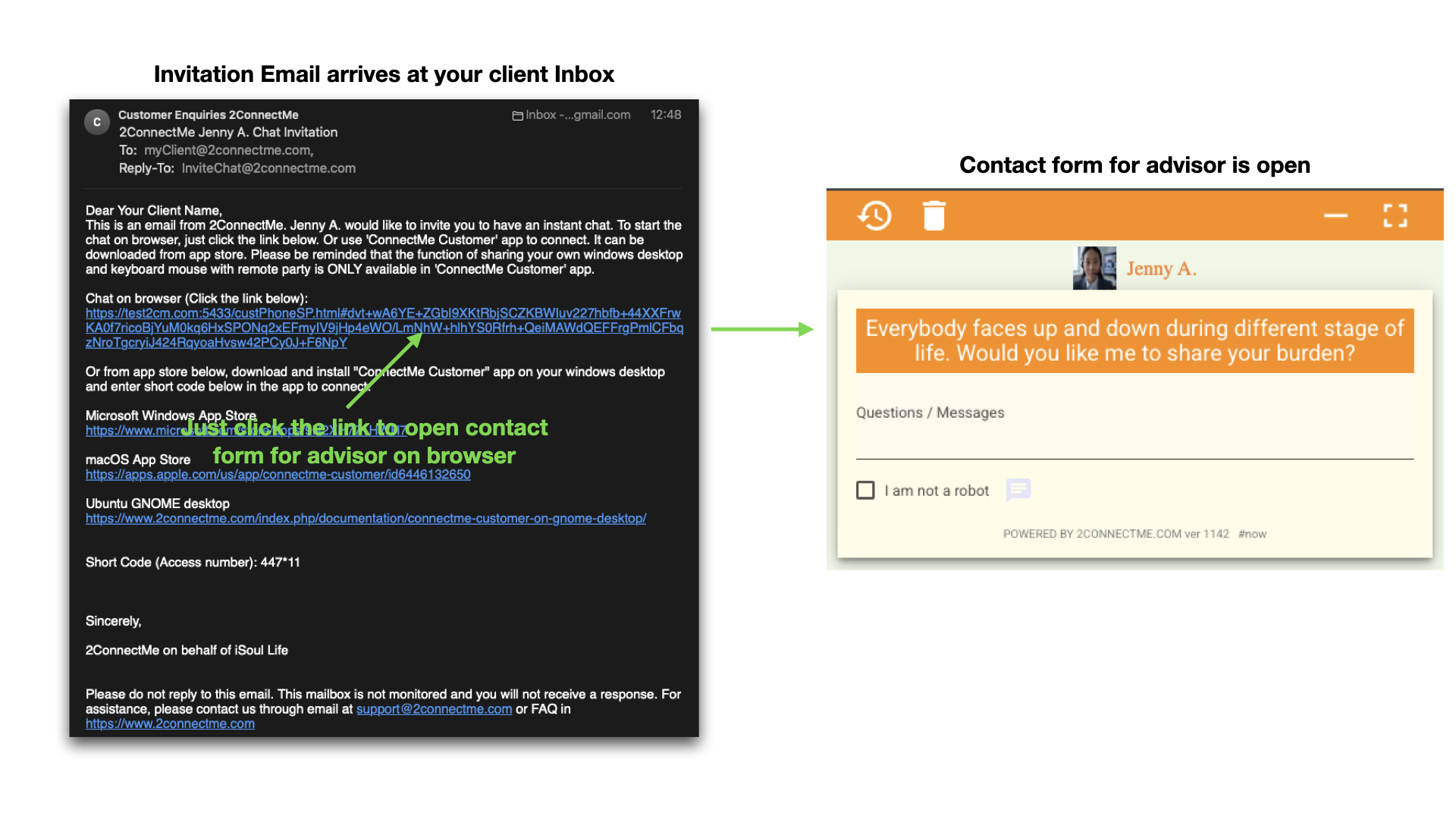
Invitation email arrives at client Inbox
Client just clicks the Url link on the email to open contact form on any browser to reach advisor at any time.
Unexpected Offline
Advanced Handling of Network Disconnection and Duration Charges Calculation
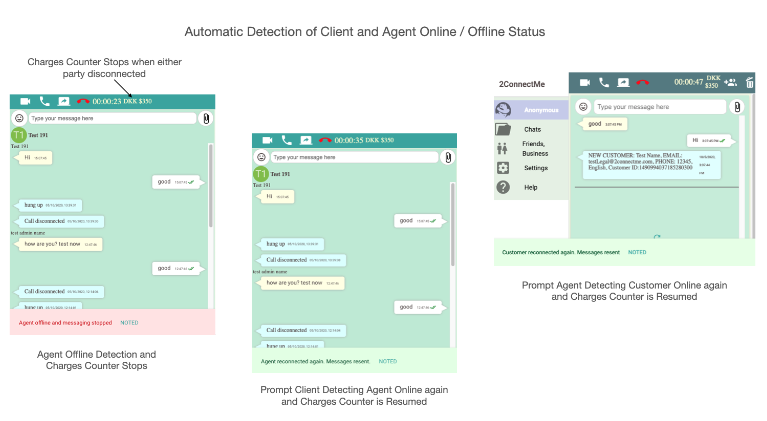
When either network of client or agent is unstable to cause temporarily disconnection, the charging meter will stop counting. The charging meter will be resumed when both client and agent get online again. 2ConnectMe will not trigger to charge the client unless either client or agent presses the RED hangup button or disconnected offline for more than 90 seconds (timeout).
When agent or client is offline without reconnection online for more than 90 seconds, 2ConnectMe backend server will trigger to charge the client for the chats AUTOMATICALLY.
Tips of Handling Unstable Network during Chatting
While 2ConnectMe warns both parties if either of them is offline during chatting, agent and client need do nothing and just wait for other party to reconnect online again. There will be prompt to remind client and agent that the other party is offline and online again as screens illustrated below.