Usage Cheat Sheet – Client
Contact form for advisor
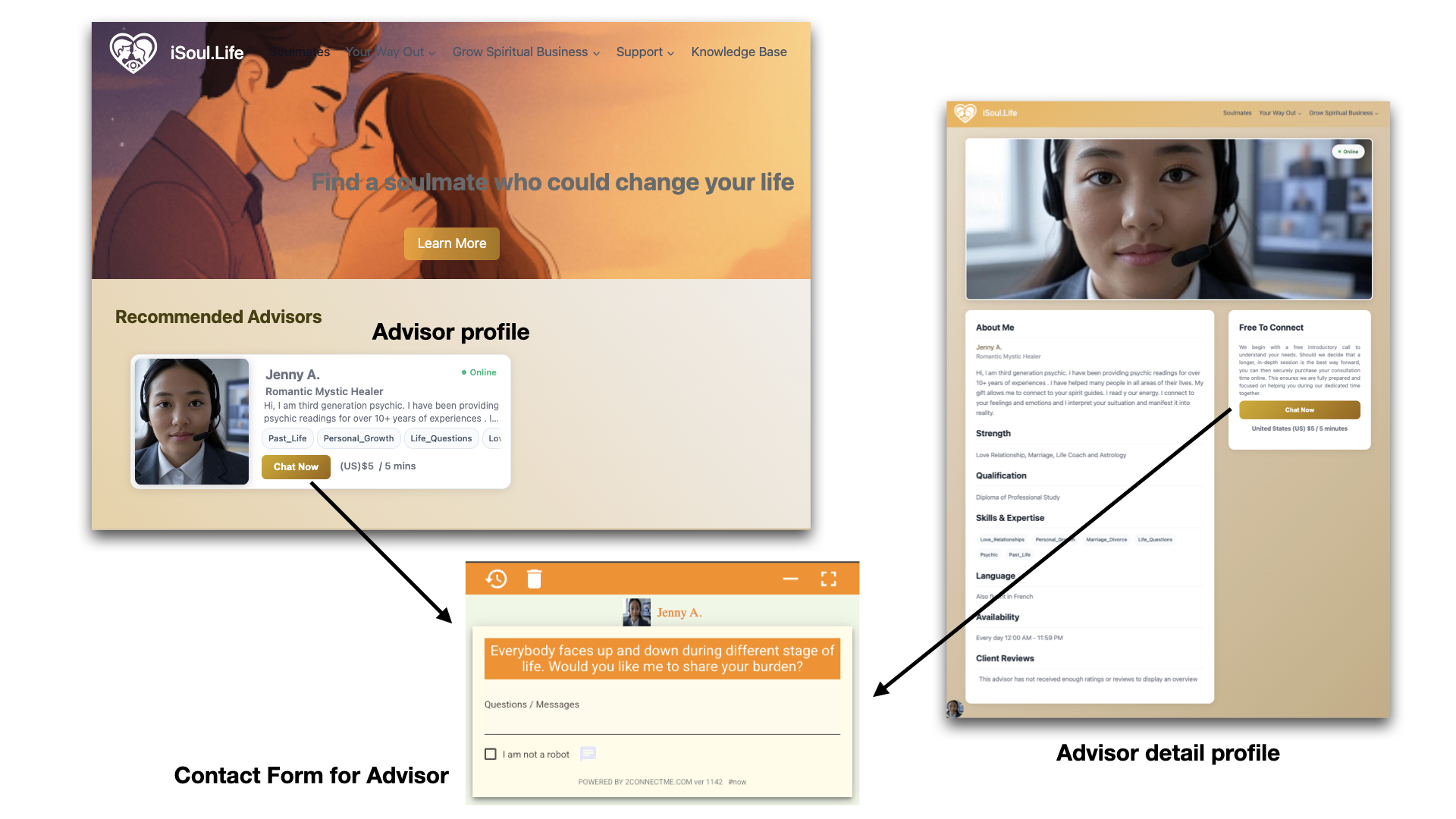
Go to Solumate to find your advisor. Either click the “Chat Now” button on advisor profile or on advisor details profile. Contact form for Advisor is open.
Client starts ringing advisor
Video Voice Chat & Screen Share
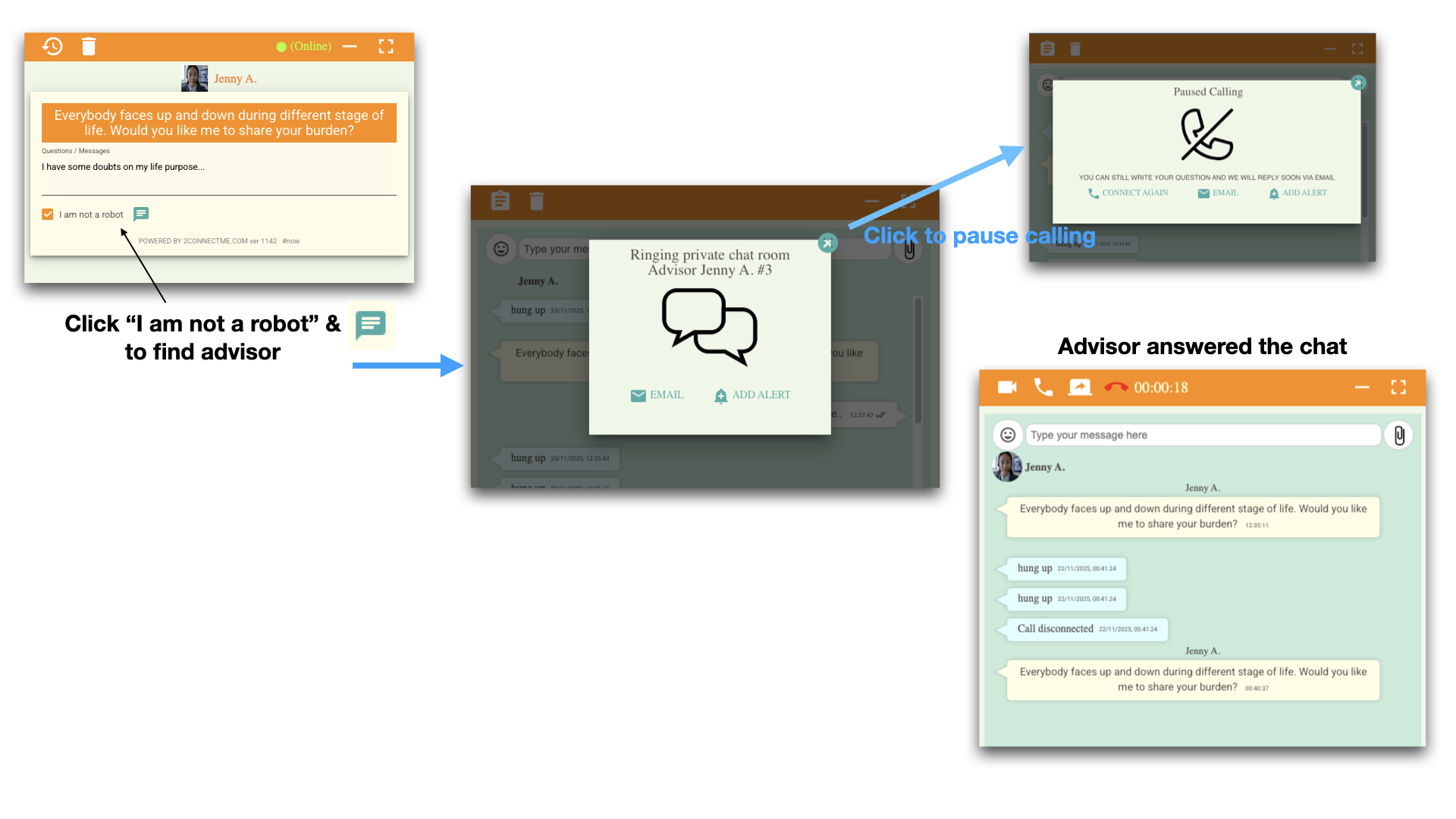
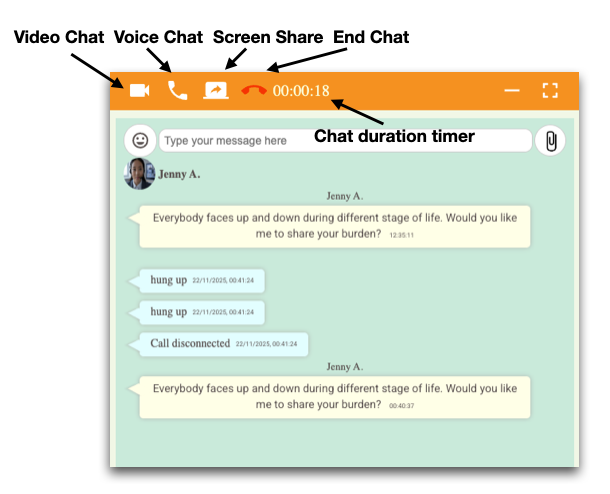
After connection, client is free to initiate voice, video chat and sreen share.
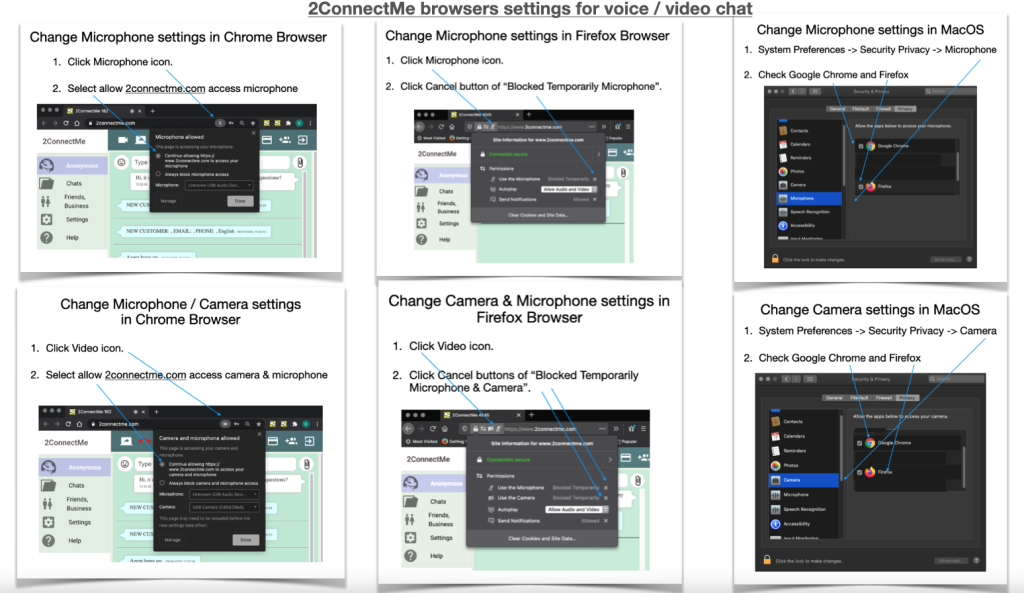
Permissions for microphone and camera
On browser, it will prompt the user to permit accessing camera and microphone for video chat. Just click ALLOW / YES to continue video voice chat.
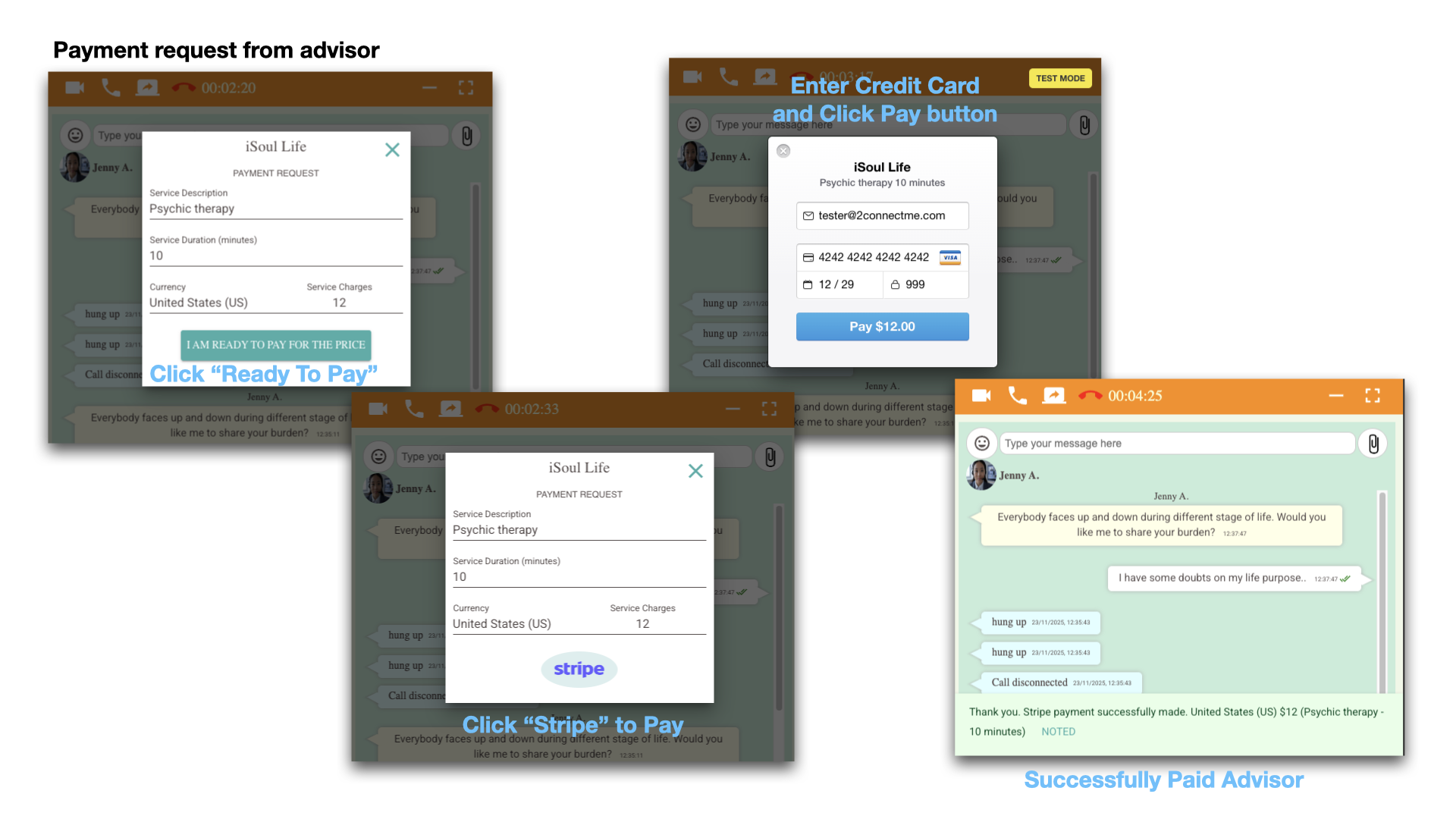
Payment request from advisor
When client and advisor think the chats should go deeper, advisor would propose the duration of chats and send payment request for client to pay on the fly. Client would enter the credit card information to finish the payment. Then the timer would reset to count down to display the duration left in this session which client has bought.
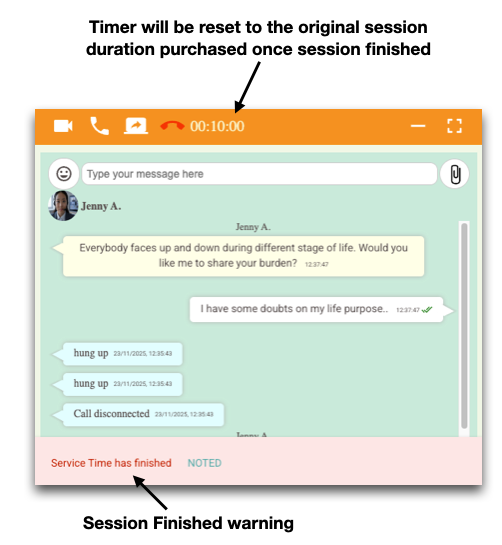
Session finished
When the count down timer reaches 0:00, it will reset to the original session duration purchased and prompt warning “Service Time has finished”. If client would like to have further chats, advisor can send futher payment request for client to pay to continue another new session without terminating the chats.
Unexpected Offline
Advanced Handling of Network Disconnection
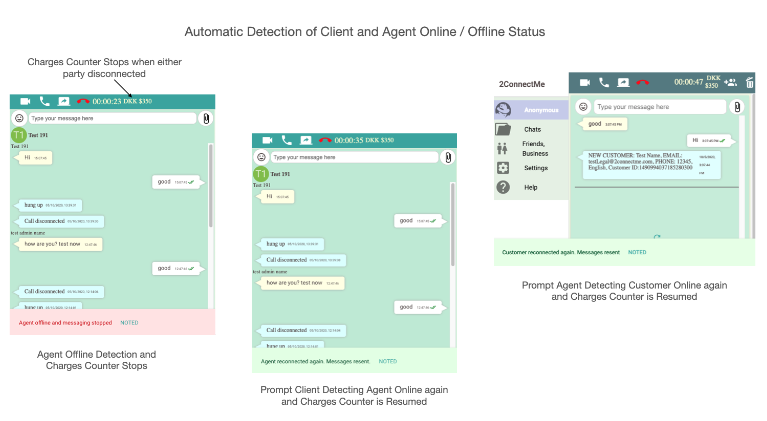
When either network of client or agent is unstable to cause temporarily disconnection, the timer will stop counting. The timer will be resumed when both client and agent get online again.
Tips of Handling Unstable Network during Chatting
While 2ConnectMe warns both parties if either of them is offline during chatting, agent and client need do nothing and just wait for other party to reconnect online again. There will be prompt to remind client and agent that the other party is offline and online again as screens illustrated below.